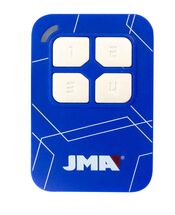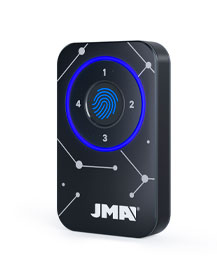
Legend: Click on the symbols for further information

Frequency

Type of code

  1. Fixed. The code emitted by the remote control, is always the same. There is no encryption and once the remote control is duplicated, the copy works directly in the receiver.
  2. Rolling. The code emitted by the remote control, changes with each pulse. A copy of the remote control should be made, that way generating the same brand and model but with a different serial number, that will be necessary for registry in the receiver. There are specific instructions for each receiver of either how to register the copy, remotely or directly manipulating the receiver.

Buttons

Auto-Programmable The remote control can be registered in the receiver without the need of the original remote control, as long as radio communication is activated and the memory is not full.

PROCESS:

  1. In front of the receiver keep the JMA remote control pressed during 10 seconds until the red LED goes off (after 4 seconds) and it turns to green (at 10 seconds).
  2. Once the LED is green, release the button and wait for the LED to definitely go off. During the process, the green LED will flash once or several times depending on the code type until finally going off.

If the process does not work, test the standard method using the original remote control or gaining access directly from the receiver.

Copy

No copy

ALLMATIC® BROWN MINI Remote

Remove Remote
  • F 433,92
  • C ROLLING CODE
  • B 2
  • AP YES
  • M-BT Biometric / BT Slim / M-FR1 / M-NOVA PRO / M-BT Advance / SR-4V / SR-48
ALLMATIC® BROWN MINI

Synchronising intructions

Print

SYNCHRONISING BENINCA ROLLING CODE REMOTE CONTROLS

Remote synchronisation procedure for the BENINCA remote control

1. Stand near the receiver and press the already synchronised hidden transmitter key.

2. Within 5 seconds press the key on the already synchronised remote control that corresponds to the channel to be associated with the new device.

3. Within 5 seconds, press the key of the new device to be associated with the channel selected in step 2.

The receiver will memorise the new transmitter and exit synchronisation mode immediately.

Direct synchronisation procedure for the BENINCA remote control

1. Open the receiver and briefly press the P button.

The red LED on the receiver will light up for 3 seconds, turn off for 1 second and light up for a further 5 seconds.

2. While the red LED is lit up, press the transmitter button that you want to synchronise with channel 1.

Other transmitters can also be entered. You only have to press a key before 5 seconds elapse since the previous device was synchronised.

3. Once finished, wait 5 seconds until the receiver exits synchronisation mode.

Observations

If the procedure fails, it may mean that the receiver memory is full and impedes synchronisation of new devices without the installer\'s permission.

V2® Match Remote

Remove Remote
  • F 433,92
  • C ROLLING CODE
  • B 4
  • AP NO
  • M-BT Biometric / BT Slim / M-FR1 / M-NOVA PRO / M-BT Advance / SR-4V / SR-48
V2® Match

Synchronising intructions

Print

SYNCHRONISING V2 ROLLING CODE REMOTE CONTROLS

V2 remote controls can be synchronised either remotely or directly on the receiver.

Remote synchronising procedure

1. Press buttons 1 and 2 on the remote control to be synchronised simultaneously for approximately 10 seconds.

2. Release.

3. Within 5 seconds, press any other button on the device to be synchronised.

4. The receiver LED will turn off after a few seconds, indicating that the unit has exited synchronisation mode.

The code has been stored.

Since this option is not enabled on all models we recommend the following procedure.

Direct synchronisation procedure on the receiver

1. Open the receiver and locate the small SW1 button.

2. Press until the receiver LED lights up.

3. Within 5 seconds, press the button on the remote control to be synchronised and hold until the receiver LED blinks.

4. The receiver LED will turn off after a few seconds, indicating that the unit has exited synchronisation mode.

The code has been stored.

Observations

If the procedure fails, it may mean that the receiver memory is full and impedes synchronisation of new devices without the installer\'s permission.

ALULUX® MT87A3 Remote

Remove Remote
  • F 868,3
  • C ROLLING CODE
  • B 2,4
  • AP NO
ALULUX® MT87A3

OPEN OUT® DOMINO Remote

Remove Remote
  • F 433,92
  • C ROLLING CODE
  • B 4
  • AP YES
  • M-BT Biometric / BT Slim / M-FR1 / M-NOVA PRO / M-BT Advance / SR-4V / SR-48
OPEN OUT® DOMINO

Synchronising intructions

Print

SYNCHRONISING GIBIDI ROLLING CODE REMOTE CONTROLS

Direct synchronisation procedure on the receiver

1. Open the receiver and locate the programming button on the circuit board.

2. Press it briefly.

The receiver LED will flash.

3. Within 10 seconds, press the button of the remote control you wish to synchronise.

The receiver will automatically exit synchronisation mode after a short time.

NOVOFERM® MNHS Remote

Remove Remote
  • F 433,92
  • C ROLLING CODE
  • B 2,4
  • AP NO
  • M-BT Biometric / BT Slim / M-FR1 / M-NOVA PRO / M-BT Advance
NOVOFERM® MNHS

Synchronising intructions

Print

SYNCHRONISING NOVOFERM ROLLING CODE REMOTE CONTROLS

The Novoferm remote control can only be synchronised directly on the receiver.

Direct synchronisation procedure on the receiver

1. Open the receiver and press the button located inside until the LED begins to flash.

2. Then press the button on the remote control and hold for approximately 3 seconds until the LED begins to flash quickly.

Take the following steps if the facility has a ceiling-mounted motor.

CARDIN® S435 GRIS Remote

Remove Remote
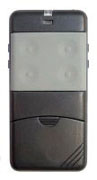
  • F 433,92
  • C ROLLING CODE
  • B 2,4
  • AP NO
  • M-BT Biometric / BT Slim / M-FR1 / M-NOVA PRO / M-BT Advance
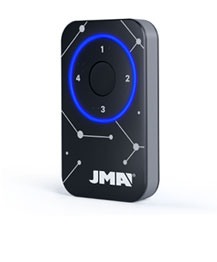
CARDIN® S435 GRIS

Synchronising intructions

The selected remotes can not be copied with a single JMA remote